A practical walkthrough of how I build Full Site Editing WordPress themes from scratch in 2026. File structure, theme.json, templates, block patterns and more.
Full Site Editing has been part of WordPress core since version 5.9. In 2026 it is mature, well-documented and genuinely the best way to build a WordPress theme from scratch. No page builder required. No Classic theme functions. Just blocks, theme.json and the Site Editor.
This is how I approach FSE theme development on real client projects — the file structure I start with, how I use theme.json to set up global styles, and how I build templates and block patterns that give clients a flexible, editable site without breaking anything.
The File Structure
An FSE theme has a specific structure WordPress expects. Here is the minimal setup I start every project with:
my-theme/
├── parts/
│   ├── header.html
│   └── footer.html
├── patterns/
│   └── hero.php
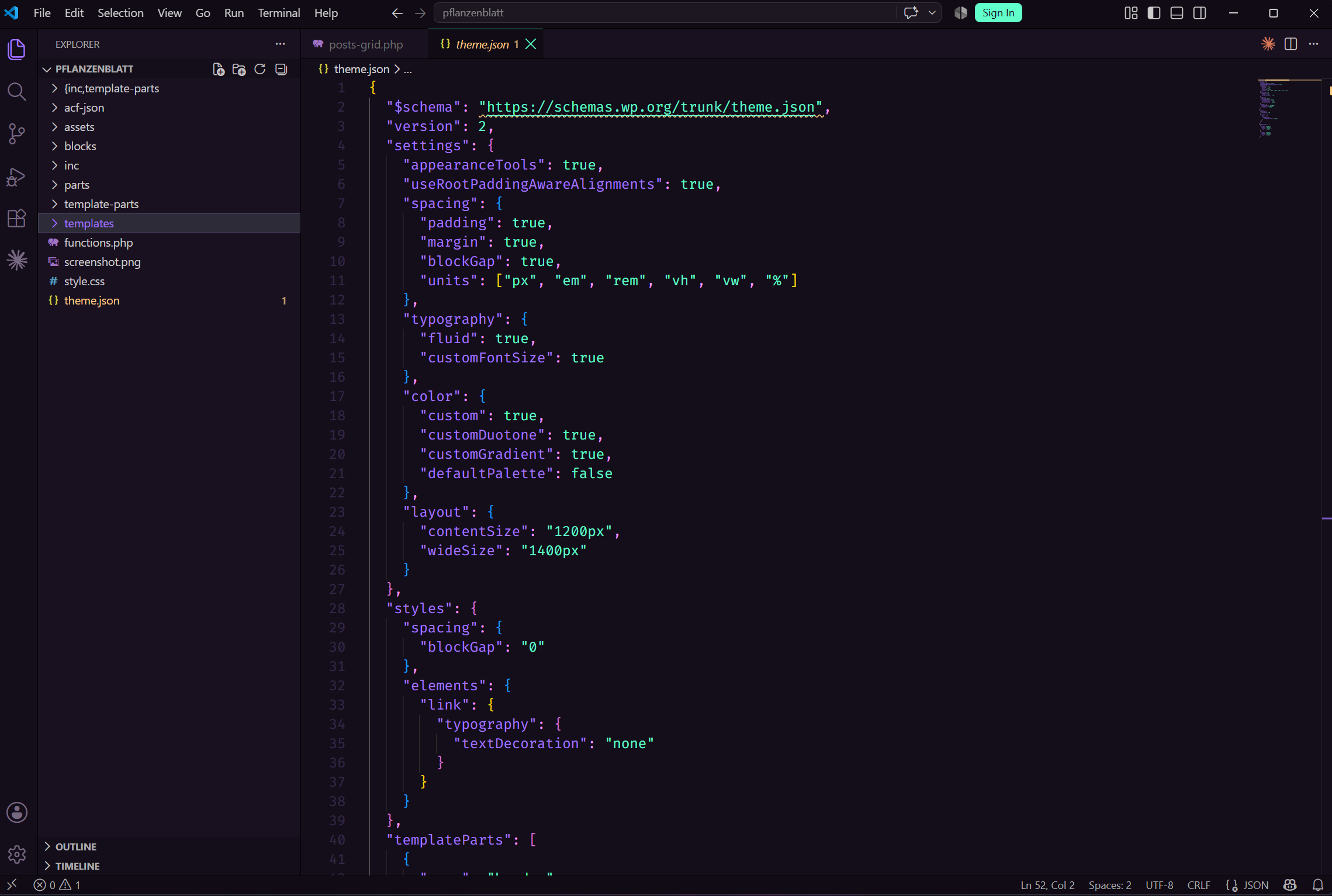
├── templates/
│   ├── index.html
│   ├── single.html
│   ├── page.html
│   └── 404.html
├── functions.php
├── style.css
└── theme.json
The templates/ folder holds full page layouts. The parts/ folder holds reusable sections like headers and footers. The patterns/ folder holds block patterns — pre-built block combinations clients can insert into any page. All of these are HTML files containing block markup, which WordPress renders through the block editor.
style.css still exists but it only needs the theme header comment at the top — the actual styles live in theme.json and the block markup itself.
theme.json: Global Styles First
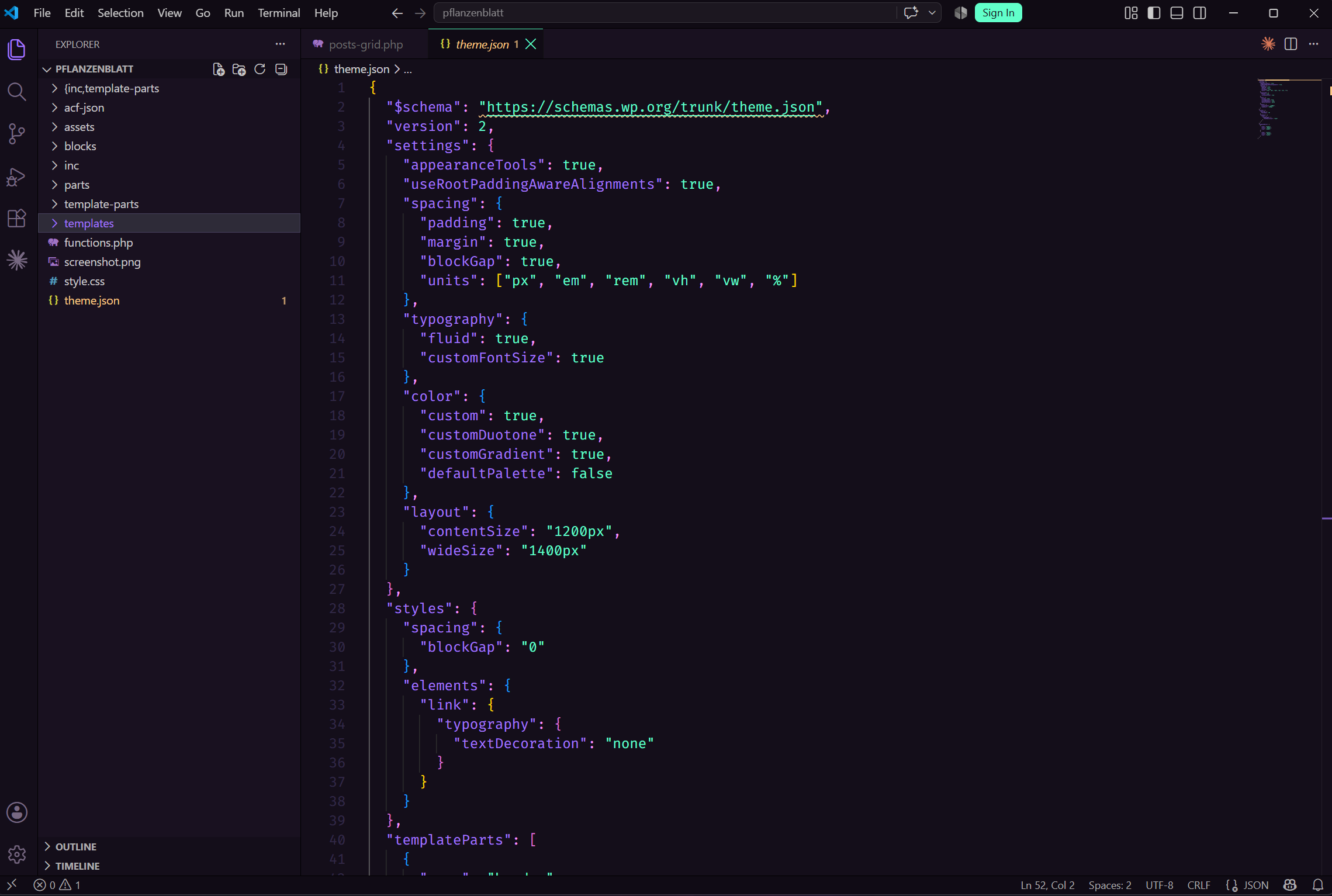
Before writing a single template I set up theme.json. This is where the entire design system lives: colours, typography, spacing, layout widths. Everything defined here flows through to the Site Editor and to the block controls every client sees when editing.
A minimal theme.json looks like this:
{
  "$schema": "https://schemas.wp.org/trunk/theme.json",
  "version": 3,
  "settings": {
    "color": {
      "palette": [
        { "slug": "primary", "color": "#1a1a2e", "name": "Primary" },
        { "slug": "accent", "color": "#e94560", "name": "Accent" },
        { "slug": "background", "color": "#ffffff", "name": "Background" }
      ]
    },
    "typography": {
      "fontFamilies": [
        {
          "fontFamily": "Inter, sans-serif",
          "slug": "inter",
          "name": "Inter"
        }
      ],
      "fontSizes": [
        { "slug": "small", "size": "0.875rem", "name": "Small" },
        { "slug": "medium", "size": "1rem", "name": "Medium" },
        { "slug": "large", "size": "1.25rem", "name": "Large" },
        { "slug": "x-large", "size": "2rem", "name": "Extra Large" },
        { "slug": "xx-large", "size": "3rem", "name": "2X Large" }
      ]
    },
    "layout": {
      "contentSize": "720px",
      "wideSize": "1200px"
    },
    "spacing": {
      "spacingScale": {
        "operator": "*",
        "increment": 1.5,
        "steps": 7,
        "mediumStep": 1.5,
        "unit": "rem"
      }
    }
  },
  "styles": {
    "color": {
      "background": "var(--wp--preset--color--background)",
      "text": "var(--wp--preset--color--primary)"
    },
    "typography": {
      "fontFamily": "var(--wp--preset--font-family--inter)",
      "fontSize": "var(--wp--preset--font-size--medium)",
      "lineHeight": "1.6"
    }
  }
}
The key thing to understand about theme.json is that everything you define here becomes a CSS custom property WordPress generates automatically. Your colour palette becomes --wp--preset--color--primary. Your font sizes become --wp--preset--font-size--large. You reference these in your styles rather than writing raw values, which means changing a colour in theme.json updates it everywhere across the entire site instantly.
I spend time on theme.json before touching templates. A well-configured theme.json means the client sees the right colours and fonts in the editor from day one, not placeholder values they have to trust will be replaced later.
Building Templates
Templates are HTML files containing block markup. WordPress has its own serialisation format for blocks — it looks like HTML comments with JSON attributes. You do not write this by hand. You build the template in the Site Editor, then copy the block markup into your template file.
Here is a simple page template:
<!-- wp:template-part {"slug":"header","tagName":"header"} /-->

<!-- wp:group {"tagName":"main","layout":{"type":"constrained"}} -->
<main class="wp-block-group">
  <!-- wp:post-title {"level":1} /-->
  <!-- wp:post-content /-->
</main>
<!-- /wp:group -->

<!-- wp:template-part {"slug":"footer","tagName":"footer"} /-->
The header and footer are template parts — separate files in the parts/ folder that can be edited once and updated everywhere. The post-title and post-content blocks are dynamic — they pull in whatever content is on the current page.
I build templates for every layout the site needs: a standard page, a single blog post, an archive page, a 404. Each one references the same header and footer template parts, so updating the navigation or the footer layout is a single edit that applies across the whole site.
Block Patterns for Client Flexibility
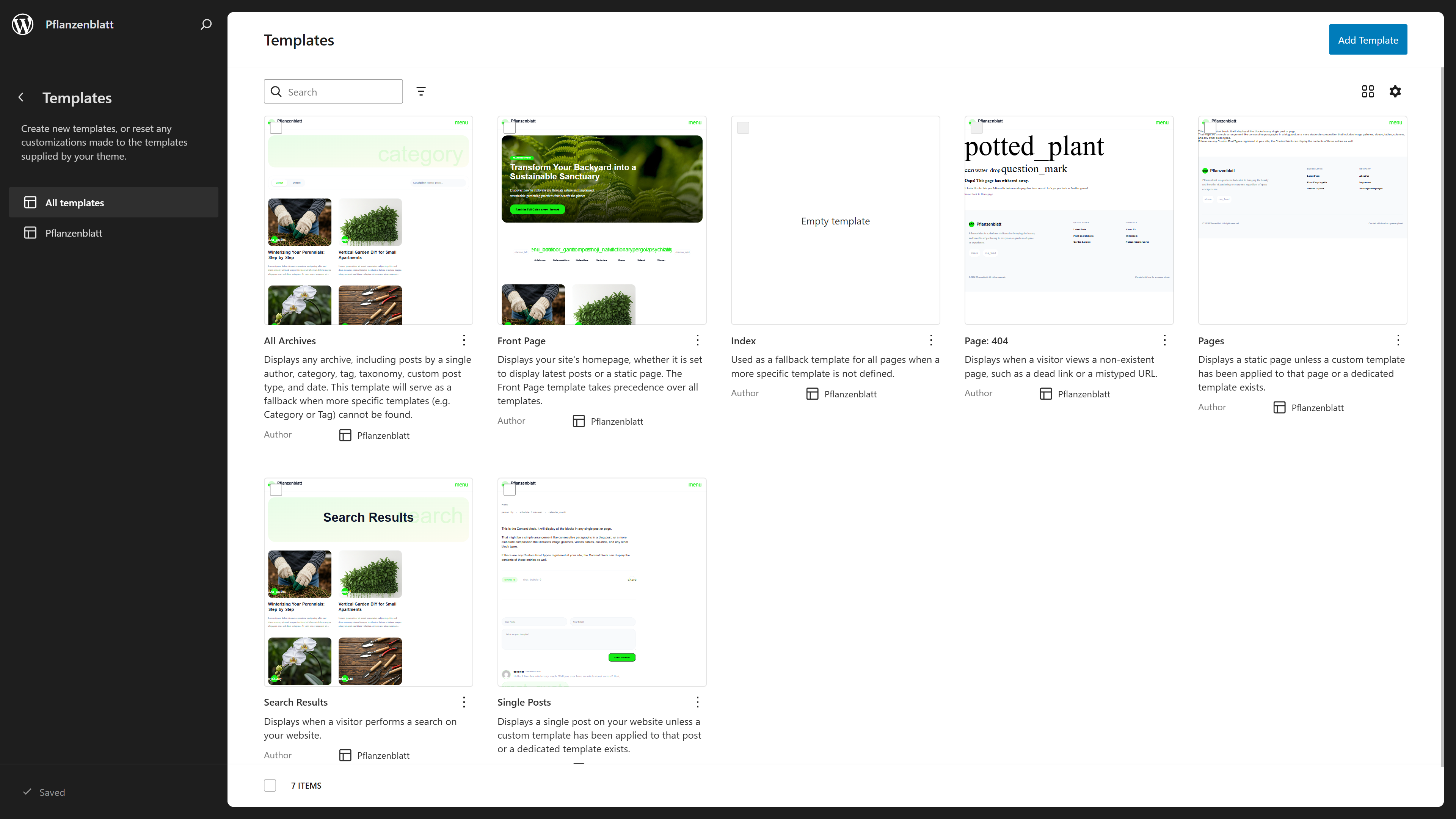
Block patterns are where FSE becomes genuinely powerful for clients. A pattern is a pre-built block combination — a hero section, a three-column feature grid, a testimonial layout — that clients can insert into any page from the block inserter with one click.
I register patterns in the patterns/ folder. Each file is a PHP file with a header comment that registers it with WordPress:
<?php
/**
 * Title: Hero Section
 * Slug: my-theme/hero-section
 * Categories: featured
 */
?>

<!-- wp:group {"align":"full","style":{"spacing":{"padding":{"top":"var:preset|spacing|60","bottom":"var:preset|spacing|60"}}},"backgroundColor":"primary","textColor":"background","layout":{"type":"constrained"}} -->
<div class="wp-block-group alignfull has-primary-background-color has-background-color has-text-color has-background">

  <!-- wp:heading {"level":1,"align":"wide"} -->
  <h1 class="wp-block-heading alignwide">Your Heading Here</h1>
  <!-- /wp:heading -->

  <!-- wp:paragraph {"align":"wide"} -->
  <p class="alignwide">A short description that supports the heading and tells visitors what this site is about.</p>
  <!-- /wp:paragraph -->

  <!-- wp:buttons {"align":"wide"} -->
  <div class="wp-block-buttons alignwide">
    <!-- wp:button -->
    <div class="wp-block-button"><a class="wp-block-button__link wp-element-button">Get Started</a></div>
    <!-- /wp:button -->
  </div>
  <!-- /wp:buttons -->

</div>
<!-- /wp:group -->
The client sees this as a ready-made section in the block inserter. They click it, it drops into the page, and they edit the text. They never need to touch the underlying markup.
I build four or five patterns for every project: a hero, a features section, a testimonials section, a simple CTA block and a content with image layout. That gives the client enough flexibility to build any page they need without breaking the design system.
What This Approach Avoids
No page builder. No proprietary shortcodes. No lock-in.
Every piece of content a client creates in this setup is standard WordPress block markup. If they ever change theme or developer, the content comes with them. Nothing is trapped inside a plugin that might stop being maintained or change its pricing model.
The Site Editor gives clients control over the whole site — header, footer, templates, global styles — without exposing them to code. For most clients, that is the right level of control: enough to make real changes, not enough to accidentally break the layout.
FSE theme development takes longer to set up than dropping a page builder onto a blank install. The theme.json configuration, the template structure, the block patterns — these require thought upfront. But the result is a faster, cleaner, more maintainable site that the client can actually use confidently.
That trade-off is worth it on every project I have built this way.
Share this article