Accessibility in Gutenberg block development is often overlooked. Here is what every WordPress developer should know about building accessible blocks from scratch.
Most WordPress developers don't think about accessibility until a client asks about it. By then it's usually too late — the blocks are built, the site is live, and fixing it means going back through every component from scratch.
I used to be the same. Then I ran an accessibility audit on a site I was proud of and got 68 issues back. 67 of them were serious.
That changed how I build Gutenberg blocks.
Why Accessibility Matters More Than You Think
Accessibility is not a nice-to-have feature for edge cases. Around 1 in 6 people globally live with some form of disability — visual, motor, cognitive, or auditory. Many of them use assistive technologies like screen readers, keyboard navigation, or high contrast displays to browse the web.
When your blocks are not built with accessibility in mind, you are actively locking these users out of your client's website. That is not a minor UX issue. In many countries it is also a legal one — the EU Accessibility Act came into force in 2025, and WCAG 2.1 AA compliance is increasingly required for public-facing websites.
Beyond the legal and ethical side — accessible sites tend to perform better in search. Clean semantic markup, proper heading structure, and meaningful link text are things both screen readers and Google care about.
The Most Common Accessibility Problems in Gutenberg Blocks
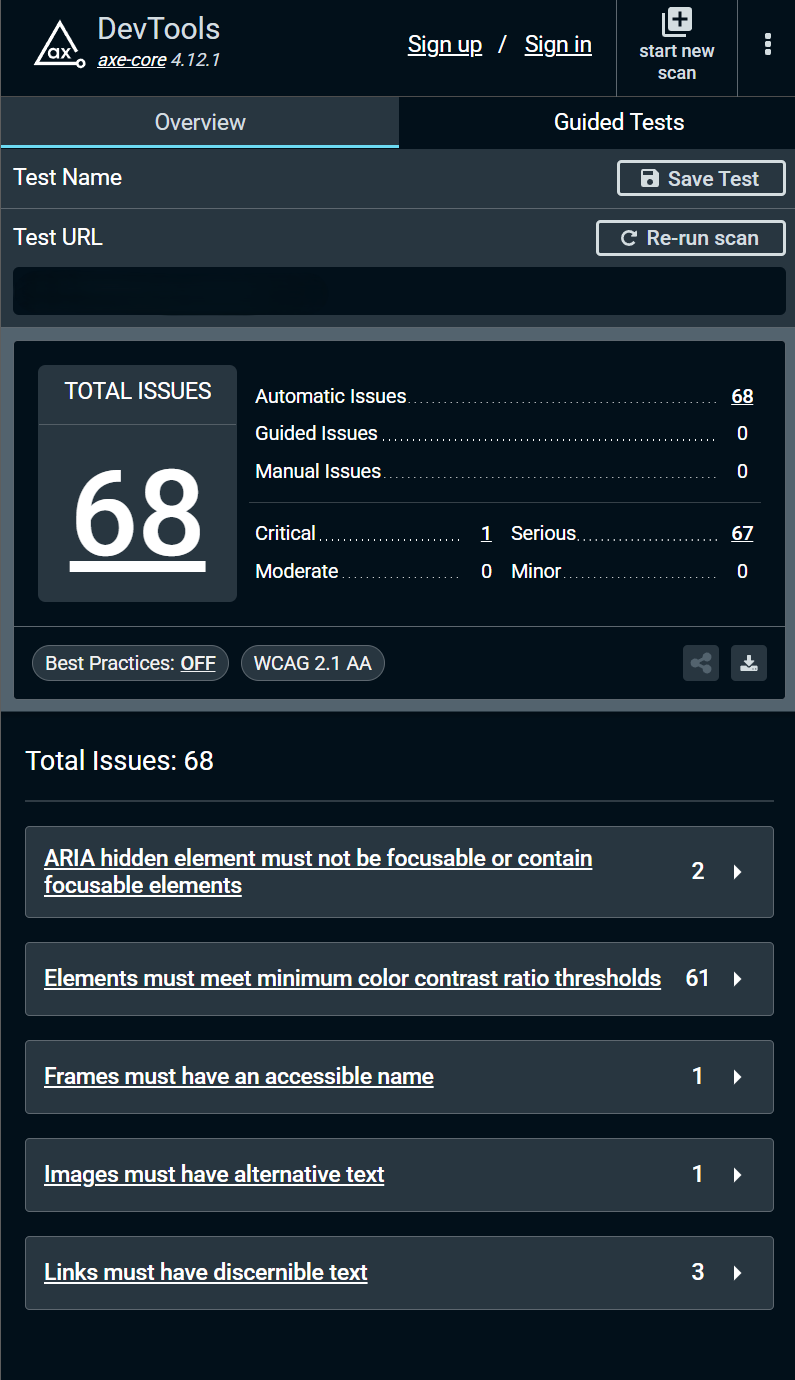
Running axe DevTools on almost any WordPress site built without accessibility in mind returns a familiar list of problems:
Color contrast failures are the most common by far. Text that looks fine visually often fails the WCAG minimum contrast ratio of 4.5:1 for normal text. This is especially common with light grey text on white backgrounds or white text over semi-transparent image overlays.
Missing alternative text on images is the classic one everyone knows about — but it still shows up constantly. In WordPress, alt text lives in the media library, but when you use background images in custom blocks there is no media library field at all. The responsibility falls entirely on the developer.
Links without discernible text happen when you use icon-only buttons or "Read more" links without context. A screen reader reads "Read more" with no idea what it links to.
ARIA hidden elements that are still focusable show up when developers use aria-hidden="true" to hide decorative elements visually but forget to also remove them from the tab order with tabindex="-1".
Frames without accessible names usually come from third-party embeds — maps, videos, iframes — that have no title attribute.
Background Images — The Gutenberg Accessibility Problem Nobody Talks About
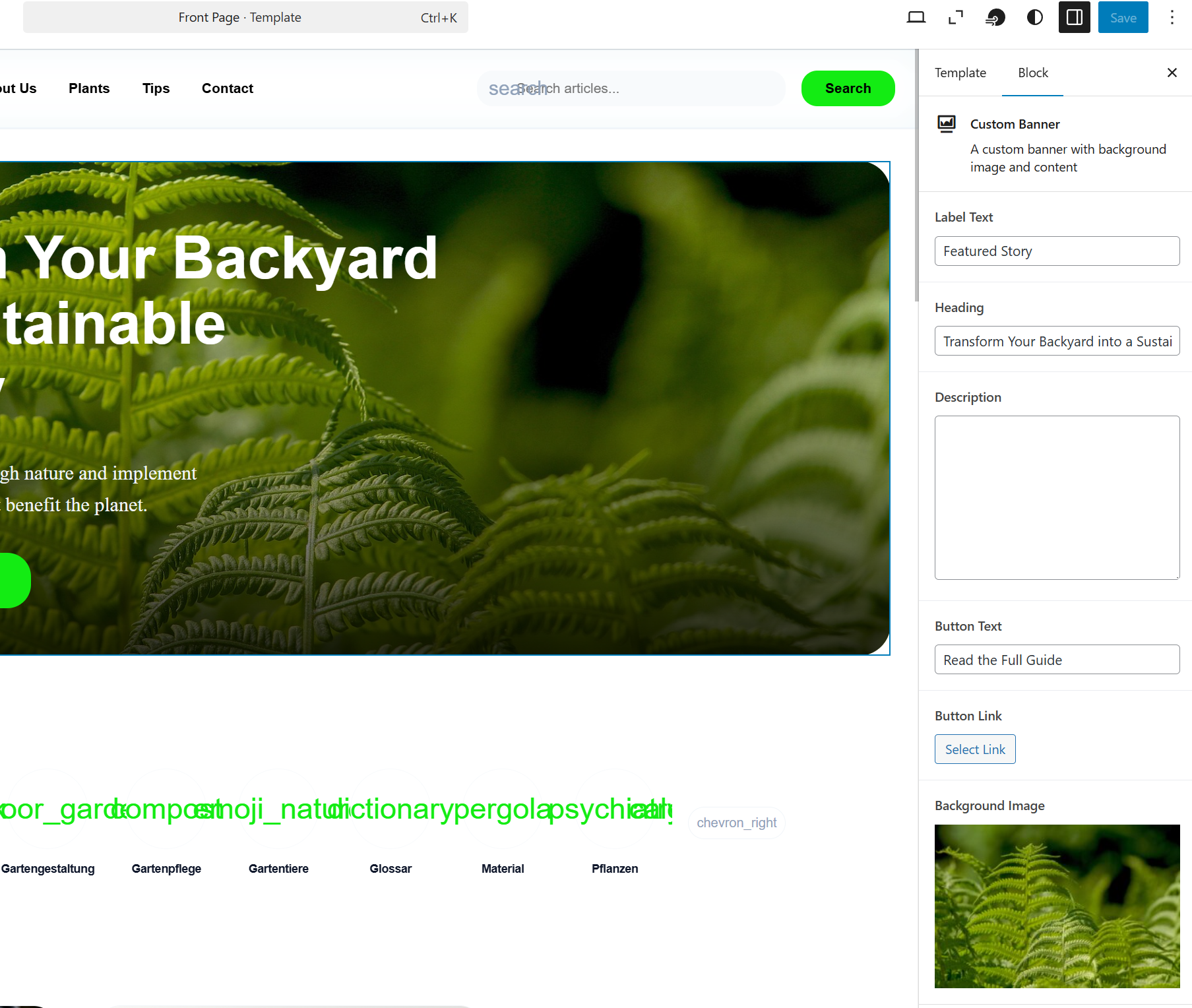
This is the issue I run into most often building custom blocks. When you register a block that uses a background image set via CSS, there is no alt text field. The image is decorative as far as the browser is concerned — but often it is not decorative at all. It contains meaningful visual content that a screen reader user will miss entirely.
The solution is to handle it explicitly in your block code. If the background image is purely decorative, add role="presentation" to the container. If it carries meaning — a hero banner with a landscape photo that sets context, for example — wrap it properly:
<div
  role="img"
  aria-label="A sustainable backyard garden with native plants"
  style={{ backgroundImage: `url(${imageUrl})` }}
  className="wp-block-custom-banner"
>
  {/* block content */}
</div>
This tells assistive technologies that the container is an image and gives it a meaningful label. It takes two lines of code and makes a real difference to how screen reader users experience the block.
Keyboard Navigation
Every custom block needs to be fully operable with a keyboard. This means:
All interactive elements — buttons, links, form fields — must be reachable with the Tab key and activatable with Enter or Space. If you build custom interactive components from scratch using divs instead of native HTML elements, you need to handle keyboard events manually and add the correct ARIA roles.
Focus indicators must be visible. The default browser outline is often stripped out by CSS resets. Make sure your blocks have a visible :focus-visible style on all interactive elements. This is a WCAG 2.1 requirement and one of the most commonly failed criteria.
Semantic HTML First
The single most impactful thing you can do for accessibility in Gutenberg blocks is use the right HTML elements. A button that navigates somewhere should be an <a> tag. A button that triggers an action should be a <button>. A list of items should be a <ul> or <ol>. Headings should follow a logical hierarchy.
Semantic HTML gives you accessibility almost for free. Screen readers, keyboard navigation, and search engines all rely on it. Reaching for a <div> when a proper element exists is almost always the wrong choice.
How to Test Your Blocks
Testing accessibility doesn't require specialist knowledge. These three tools cover most of what you need:
axe DevTools — Free Chrome extension. Runs an automated scan and categorises issues by severity. A good first pass for catching the obvious problems.
Lighthouse — Built into Chrome DevTools. Run an accessibility audit from the Lighthouse tab. Gives you a score and a list of specific failures with links to fix guidance.
Keyboard testing — Unplug your mouse and navigate your block with Tab, Shift+Tab, Enter, and Space. If you get stuck or lose focus at any point, something needs fixing.
NVDA is a free screen reader for Windows if you want to go further and hear how your blocks actually sound to a screen reader user.
Making Accessibility Part of the Build Process
The hardest part of accessibility is not the technical knowledge — it is the habit. The fixes are usually small. The problem is catching them before the site is live rather than after.
I now run an axe scan on every block I build before it leaves local development. It takes two minutes and catches the majority of issues automatically. The ones it doesn't catch — keyboard navigation, logical heading structure, meaningful link text — I check manually during a final review before handoff.
Building accessible blocks is not about perfection. WCAG has three conformance levels and full AAA compliance is genuinely difficult to achieve on most sites. But WCAG 2.1 AA — the standard required by the EU Accessibility Act — is achievable on every project if you build with it in mind from the start.
If you need custom Gutenberg blocks built to WCAG 2.1 AA standards, get in touch.
Share this article